Breaking Language Barriers: A Cross-Platform Guide to Immersive Translate
In an age drowning in information, language shouldn’t be the wall holding you back. Immersive Translate isn’t just another browser extension; it’s a productivity superpower. Its killer features? Side-by-side bilingual display, a robust custom translation engine (think free Google, Microsoft, SiliconFlow, and GLM-4 Flash, plus premium options like OpenAI, DeepL, and Deepseek), and flawless PDF/e-book support. No wonder it’s become a go-to for so many.
This guide will walk you through deploying this linguistic wizardry on your PC (Chrome/Edge), Android phone/tablet, and iOS iPhone/iPad. Get ready for a seamless, cross-device reading experience.
Part 1: Your PC Hub (Windows/Mac/Linux)
This is where Immersive Translate truly shines, offering the most complete experience and easiest setup. We’ll use Google Chrome as our example, but the steps are identical for Edge.
Installing Immersive Translate
Fire up Chrome and head over to the Immersive Translate official website.

Select your browser (Chrome, in this case), and hit install. Easy peasy.
Essential Configuration & Usage
Don’t panic if you don’t see the Immersive Translate icon right away after installation. We need to pin it.
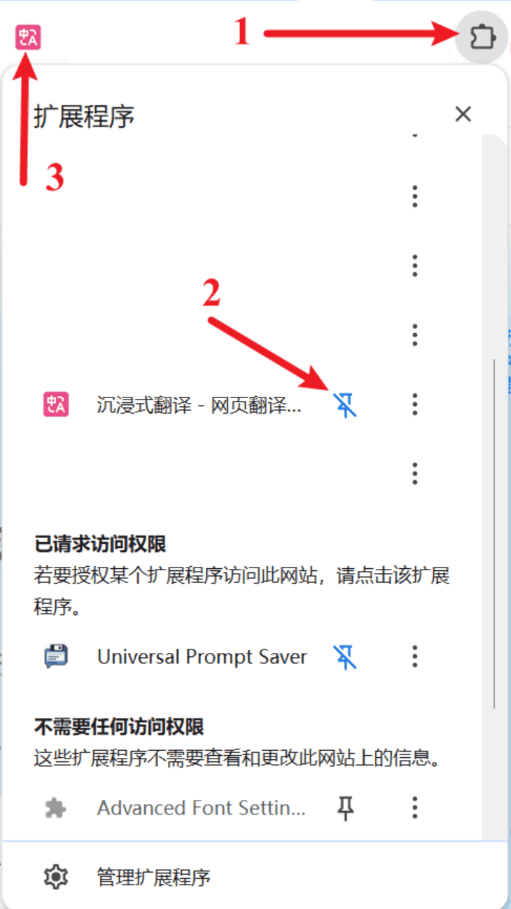
Click the “puzzle piece” extensions icon in your browser’s top-right corner (Red Number 1). This brings up your installed extensions list. Find Immersive Translate, then click the “thumbtack” icon next to it (Red Number 2). You’ll now see the extension’s icon (Red Number 3) in your toolbar. Click it to open the Immersive Translate settings.
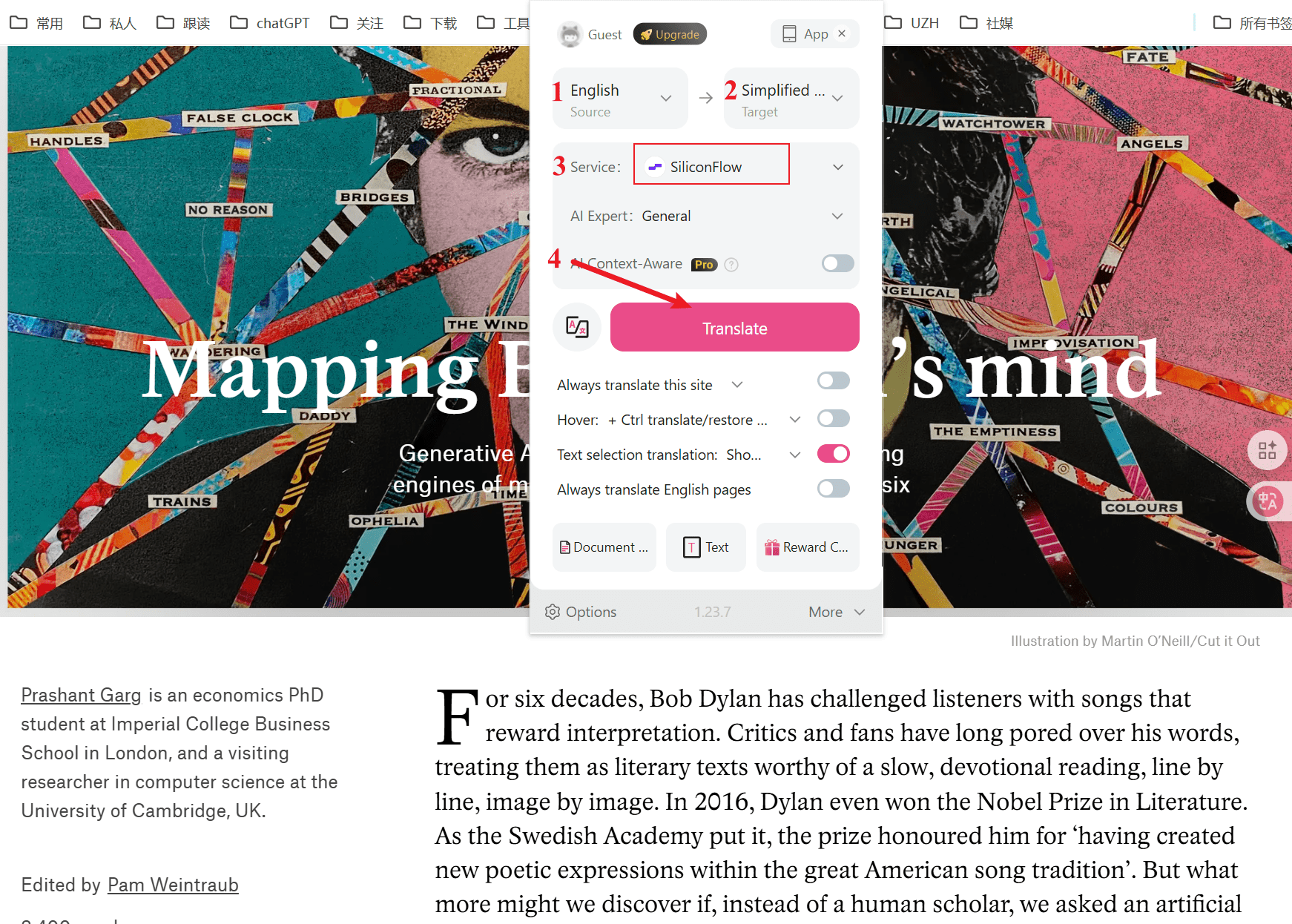
The settings window will pop up. Generally, you’ll set your source language (Red Number 1) to English (or whatever the page’s original language is) and your target language (Red Number 2) to Chinese. For the translation engine, I recommend SiliconFlow (Red Number 3)—it’s free, as are Google and Microsoft. Hit the translate button (Red Number 4), and voilà: your bilingual results appear.
A bilingual page should load almost instantly.

Immersive Translate has other neat tricks, like PDF translation. But for now, mastering the web page bilingual display is enough. We can explore those advanced features once you’re comfortable.
Part 2: Android On-the-Go (Phones/Tablets)
Android’s ecosystem is a playground for browsers. Kiwi Browser, built on Chromium, almost perfectly mirrors Chrome’s PC extension support. Firefox for Android is rock-solid and officially supports major extensions. Then there’s Lemur Browser, a newcomer specifically designed for extensions, supporting both Chrome and Edge stores.
But for sheer convenience, let’s skip the configuration headaches and use the official Immersive Translate browser app. It’s essentially a browser with built-in translation, ready to go right out of the box. Just open it and start reading those English articles.
Go to the official website, tap “Android” to download the app, install it, and you’ll have a new “Immersive Translate” app on your phone—it’s a browser with the translation feature pre-installed.
Launch the Immersive Translate app, type your desired web link into the address bar (Red Number 1)—for example, Hacker Digest 006 | Michelin in Prison, Bob Dylan’s Thought Topology | Luznest (光巢). Once the English page loads, tap the translate button at the bottom of the page (Red Number 2). The final result is exactly as shown on the right: a beautiful bilingual translation.

Part 3: The iOS Experience (iPhone/iPad)
iOS is a bit of a walled garden, but thanks to Safari extensions, the experience is just as smooth. Again, head to the official website, tap the iOS (Apple) icon, and install. The usage is similar to the other platforms, so I won’t rehash every detail. Just follow the prompts and set it up step-by-step.
Crucial Step: After enabling, tap the “Immersive Translate” icon again. You absolutely must select “Always Allow… to Access All Websites” in the permissions options. This ensures that web pages will automatically translate going forward, saving you from repeated authorization prompts.